
|

|

|
P200 Observer Checklist and FAQ
Please find summary checklist and 'Frequently Asked Questions' for P200 observers below.
Checklist
Proposing
- Understand your project, and when your objects are accessible—i.e. don't propose to observe fall objects in the spring
- Understand your institution's proposal solicitation deadlines (Caltech A semester proposals typically due around 01 October, B semester proposals typically due around 01 April) and proposal submission mechanisms
- Understand and justify your needs for multiple P200 instruments at different P200 focii (as applicable)
- Follow proposal submission instructions; complete/submit observing coversheet with proposal
Planning
- Know your observing time assignment; propose schedule change as necessary
- Ensure you have reservation system account
- Define instrument settings (reservation system account required); propose instrument changes as necessary. Communicate any unusual schedule and/or support requirements to the Palomar support team
- Define run location information (local vs. remote) using the reservation system observing location form
- Make travel and Monastery reservation plans (reservation system account required)
- Familiarize yourself with travel resources (e.g. how to get to Palomar) including observatory compound gate code
Observing
- Observe
- Save/export data to local storage
- Leave observing feedback at the COO feedback portal
Frequently Asked Questions
- Applying for Palomar Time
- Telescope & Instrument Scheduling & Configuration
- How do we develop the telescope observing schedule?
- I have a schedule issue. How do I request a change to the telescope/observing schedule?
- I cannot make my assigned telescope time, What now?
- How do I define the instrument settings for my upcoming observing run?
- How do I edit/modify the instrument settings/“green sheets” for my observing run?
- What if the system isn’t allowing me to edit my observing run information?
- How do I request a change of instrument, instrument configuration, or instrument addition?
- What instrument changes may I request during my observing night?
- How do I define my observing location?
- Palomar Reservation System
- What resources do I need to have/install/arrange before I register for a Reservation System Account?
- I am a first-time Palomar observer. How do I create a new reservation system account?
- I already have a Palomar Reservation System account. What steps are required to continue my system access?
- What is the motivation behind the extensive additional identity security?
- What is an authenticator app and why do I need one?
- What Authenticator Apps work with the Palomar Reservation System?
- How do I choose my Authenticator App and change it if I wish to?
- Why so many “codes” and how do I keep them all straight?
- After all that registration process, how do I login to my Reservation System account?
- How do I submit and edit instrument settings for my run?
- How long do I have to submit instrument settings for my run?
- How do I define my observing location?
- Palomar Observing
- I intend to observe on-site at Palomar. How do I arrange on-site accommodations?
- How do I make a Monastery reservation?
- Can I use the Monastery during the day without booking a room?
- What are the Monastery guest fees?
- I have certain dietary restrictions. How do I inform the Monastery service providers of same?
- What do I need to know to travel to Palomar?
- What are the Monastery check-out and check-in times?
- How do I find X at the Observatory?
- Wait—what do you mean the Observatory compound has a security gate?
- How do I get into the 200-inch dome?
- I intend to observe remotely. How do I request remote (P200) observing arrangements?
- When can I do my (P200) instrument calibrations?
- When should I arrive at the (P200) dome?
- What time can I start (P200) observing?
- Various and Sundry
Contents
1. Applying for Palomar Time
1.a. How do I apply for Palomar time?
It depends…
Access to Palomar telescopes is based on your standing with a Palomar project or partner constituency. For example, partners in the Hale/P200 telescope are Caltech, JPL, NAOC, and Yale. Each of these partners manage their P200 time allocation independently and differently, so we’ll have to direct you to each of the partner time allocation process as appropriate for your situation.
If you are affiliated directly with Caltech, you can start by consulting our COO telescope time solicitation page.
NAOC-specific information [show]
The Telescope Access Program (TAP) gives all Chinese astronomers access to international ground-based facilities, including the Hale (P200) Telescope. Everyone who is planning a P200 proposal should check with the TAP website for call for proposals for specific details, including deadlines, proposal requirements, submission, evaluation and announcement process.
1.b. When can I apply for Palomar time?
Palomar telescopes are typically scheduled by observing semester; the A semester is February – July inclusive, and the B semester is August – January inclusive. Proposal solicitations typically are issued approximately five months before the start of the observing semester (so early March for B and early September for A semester), and allocation decisions/time assignments are typically announced two months before the start of the observing semester (so early June for B and early December for A semester).
If you are affiliated directly with Caltech, the COO telescope time solicitation page will provide information on solicitation, proposal format, submission deadlines, and notifications specific to the Caltech constituency.
2. Telescope & Instrument Scheduling & Configuration
2.a. How do we develop the telescope observing schedule?
The semester observing schedules are developed based on proposal inputs for designated programs from each of our constituencies. In particular the program cover sheets (that capture program scheduling preferences and constraints, and instrument configurations) are the key drivers in the scheduling process. We do our best to integrate all the program objectives, preferences, and constraints into a balanced, efficient, and cohesive telescope schedule. An important efficiency consideration is the degree to which we can “block schedule” programs with similar instrumentation needs together; minimizing instrument changes reduces wear and tear on the instrumentation and summit team.
Draft schedules are reviewed with the key observatory stakeholders (allocation contacts for each of our constituencies, and observatory personnel who must implement the schedule) before the schedule is finalized and posted on our reservation system web tool.
2.b. I have a schedule issue. How do I request a change to the telescope/observing schedule?
We get this a lot…
Inevitably individual program observers request changes to the schedule once it is posted. The Observatory looks to the change advocate to propose an alternative schedule variant and coordinate that proposal with all impacted programs in advance.
Email requesting a proposed telescope schedule change (copying the administrative PIs of all programs impacted by the proposed change) is sent to (COO Deputy Director) Andy Boden (bode [at] astro.caltech.edu), who will coordinate with Observatory personnel to assess the operations impact of the proposed schedule change. If the assessed impact is acceptable, the schedule change proposal will be accepted and implemented, and the impacted program contacts will be notified of the change.
Observatory judgement in telescope schedule change requests is final.
2.c. I cannot make my assigned telescope time, What now?
If you really cannot make your assigned telescope time then you should advise (COO Deputy Director) Andy Boden (bode [at] astro.caltech.edu) that you are returning the telescope time for reassignment. Please be specific on what dates are being returned, and with as much advance notice as possible so as to maximize the chances the time can be usefully reassigned to another investigation.
2.d. How do I define the instrument settings for my upcoming observing run?
Facility instrument settings are defined by using instrument settings forms available to qualified observers through the reservation system. Select your run number on the P200 observing schedule. You will see the primary and secondary instruments listed for your run. Open the “Edit Settings” link for each instrument to enter your desired settings, then press the “SAVE” button at the bottom of the page to record entries and/or edits. Note that your reservation system account must be designated as “cognizant”—either Principal Investigator or Lead Observer of the run—for you to edit instrument settings.
Only instruments assigned to/approved for your run will be available to you through this process.
2.e. How do I edit/modify the instrument settings/“green sheets” for my observing run?
Sometimes additional information comes to your attention as your run approaches and you wish to update instrument configurations. We request instrument settings are specified not less than two (2) weeks in advance of an upcoming observing run. The reservation system will support submission or edit of instrument settings up to four days in advance of your observing run. If you need to change instrument settings inside this four day window you must contact the support team to request changes.
To edit the instrument setting for an observing run (possible up until four days before the observing run), you open the observing “run” number on the observing schedule.
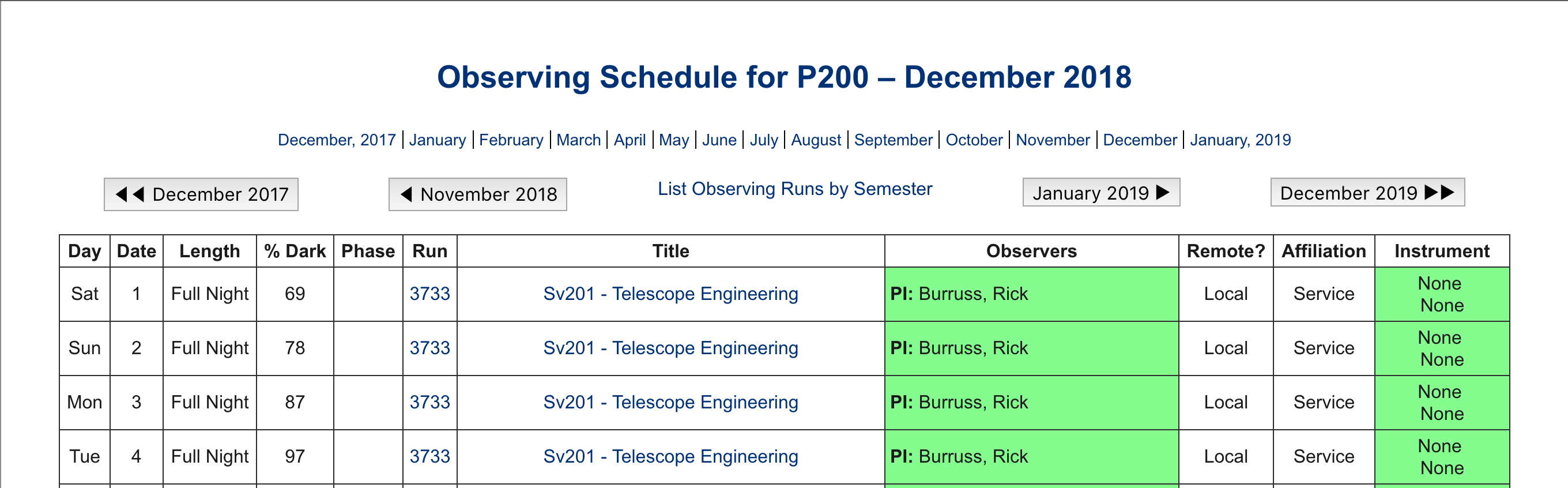
P200 schedule.
Opening the observing “run” number will bring up the details of the observing run.
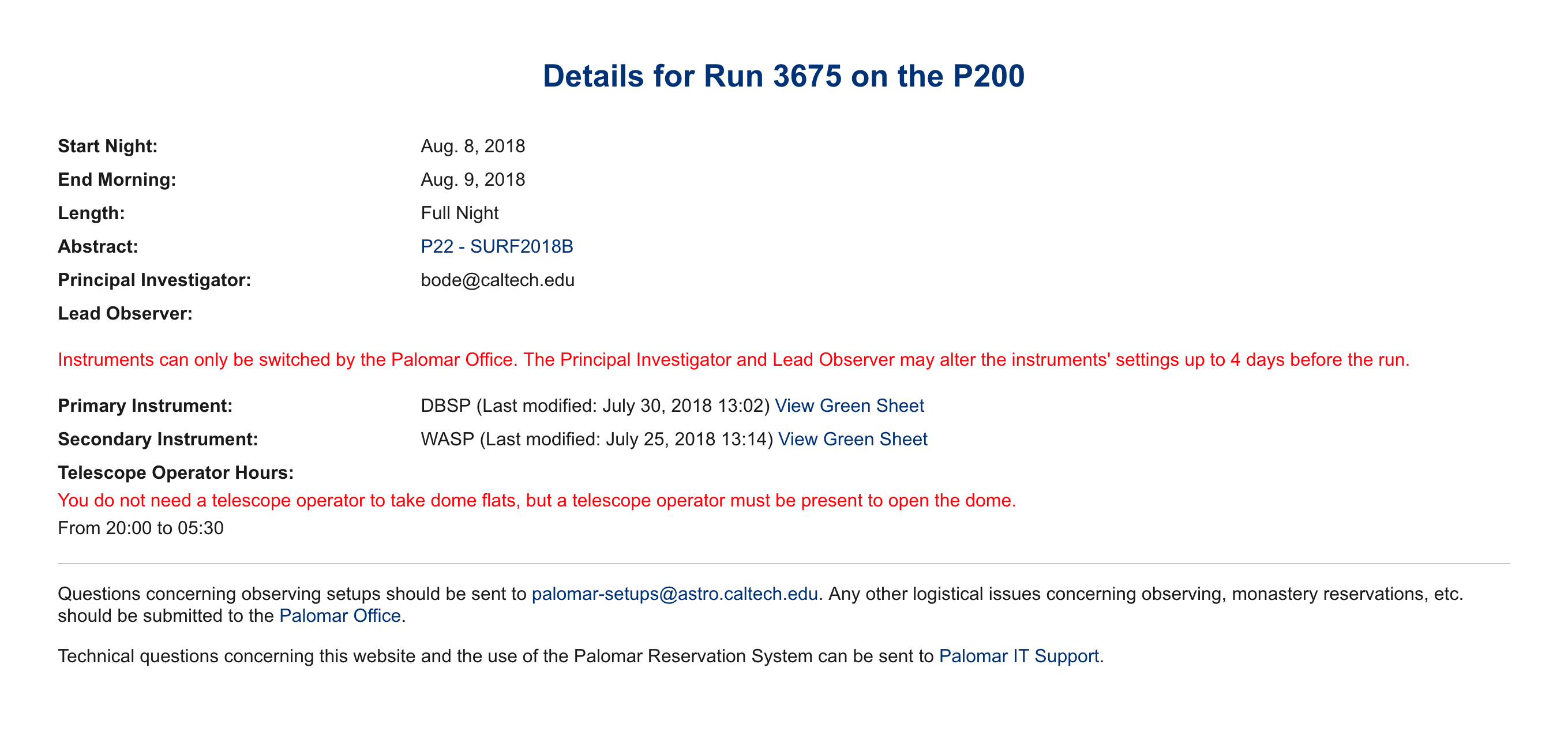
Observing run details.
Here’s an example of the details for an observing run. You’ll notice that there is not a link allowing you to edit the observing setup for the observing run because the person logged into the reservation system isn’t either the Principal Investigator or the Lead Observer. If you are logged into the system with the account of the Principal Investigator or the Lead Observer then a link appears next to the instrument name allowing you to access the associated “green sheet” where you can specify the required instrument parameters.
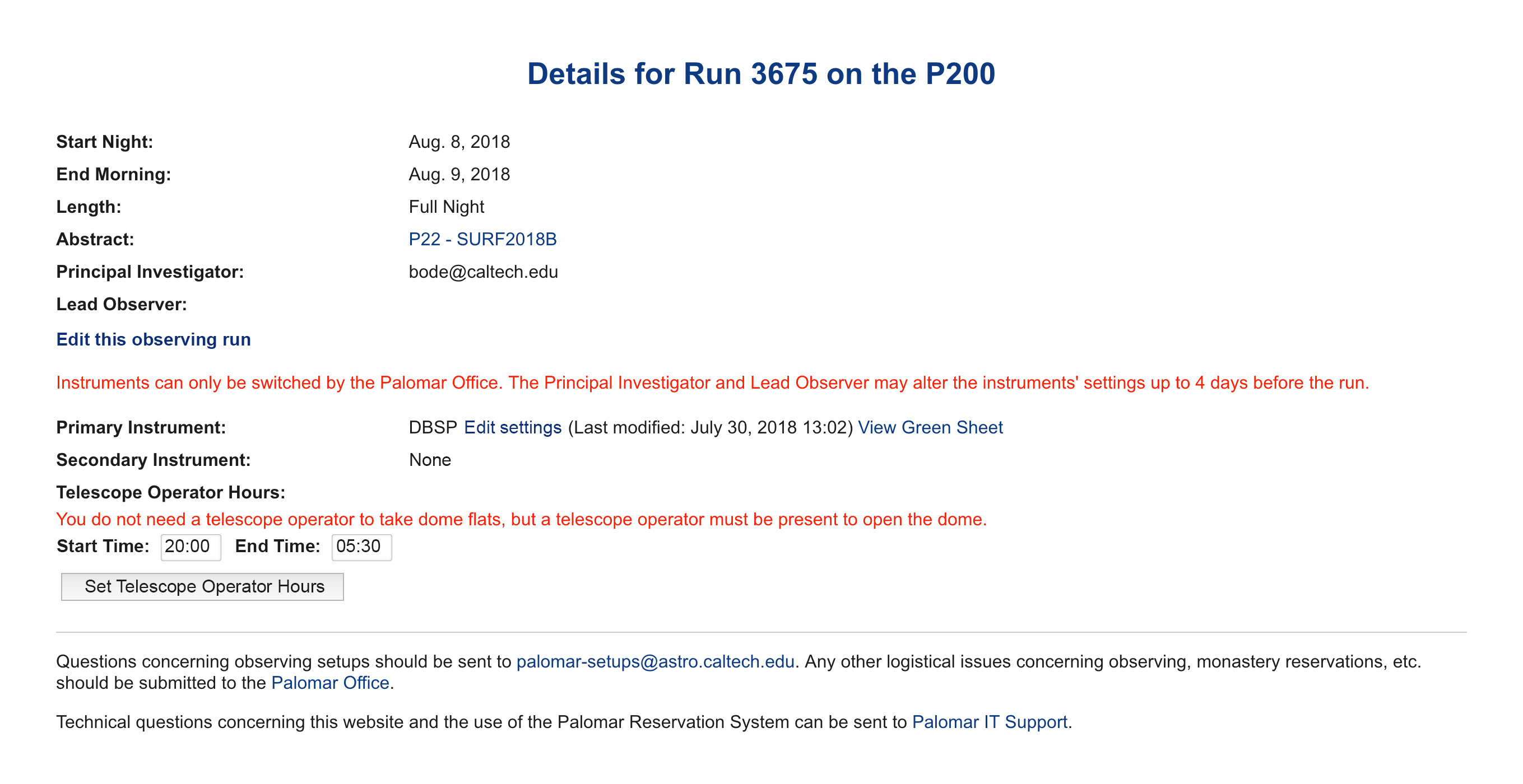
Observing run details with editing capabilities.
By opening the “Edit settings” link the “green sheet” for the associated instrument will be displayed (note each “green sheet” is different and customized for the particular instrument).
2.f. What if the system isn’t allowing me to edit my observing run information?
Sometimes the email address associated with the observing run when it is created does not correspond to the observer’s user name in the reservation system. As a result, the system does not accurately associate the observing run with your account. If this happens then contact the support astronomers in the afternoon (760) 742-2018 and they can edit the observing run to give you access or email jwm [at] astro.caltech.edu concerning the issue. Please let them know your username so they can identify the correct account.
2.g. How do I request a change of instrument, instrument configuration, or instrument addition?
Instrumentation assignment is defined as a part of the time allocation/telescope scheduling process. Instrumentation changes are controlled because they have the potential to complicate observatory operations.
Nonetheless, situations sometime arise where a change in instrumentation is desirable for your run. This instrument change request process parallels telescope schedule change requests: the run cognizant (either administrative Principal Investigator or Lead Observer—if they are different) submits a request to change, add, or reconfigure an instrument (relative to the baseline schedule), and the observatory will assess accommodating the request based on its operations impact. If the change request is accepted then the observing team will be advised of same, and the instrument configuration will reflect the request.
Users may submit an instrument change request in email to [COO Deputy Director] Andy Boden (bode [at] astro.caltech.edu), (Site Superintendent) Rick Burruss (burrus [at] caltech.edu), or the general Palomar support email list.
Observatory judgement in instrument configuration/addition change requests is final.
A particular note about secondary instrument addition requests: Observatory policy is to require constituent allocation judgement in the use of secondary instruments (e.g. Caltech requires TAC approval for secondary instrument use). Requests to add a secondary instrument outside the constituent time allocation process will be accommodated solely at the Observatory’s discretion and typically only if there is minimal operations impact.
2.h. What instrument changes may I request during my observing night?
Most nighttime instrument configuration choices are available as a part of the regular instrument configuration process. The configuration parameters specified in the instrument settings/"green sheets" are used by the day crew to define your instrument configuration for your run.
The observatory cannot support major instrument reconfigurations during an observing night; any changes requiring action by the instrument support crew must necessarily wait until daytime hours. Examples of unsupported nighttime instrument changes are DBSP grating and dichroic changes (grating angle changes are possible), CWI grating changes, WaSP filter wheel replacements (choosing among the four pre-configured WaSP filters is perfectly fine).
These configuration restrictions are a particularly important consideration if investigations/observers are sharing/splitting an observing night and instruments. For a shared run the Lead Observers must agree upon common instrument parameters; beyond the minor examples above these parameters are fixed for the observing night.
If you have any questions or concerns about possible instrument changes during a night of your run please direct them to the general Palomar support email list.
2.i. How do I define my observing location?
Starting in 2022B we are requiring cognizant observers to define their observing location choices (local vs. remote) as a part of their run setup using the Reservation System. In conjunction with the “green sheet” instrument setup pages you will be prompted to enter your remote/local run settings on the observing location form:
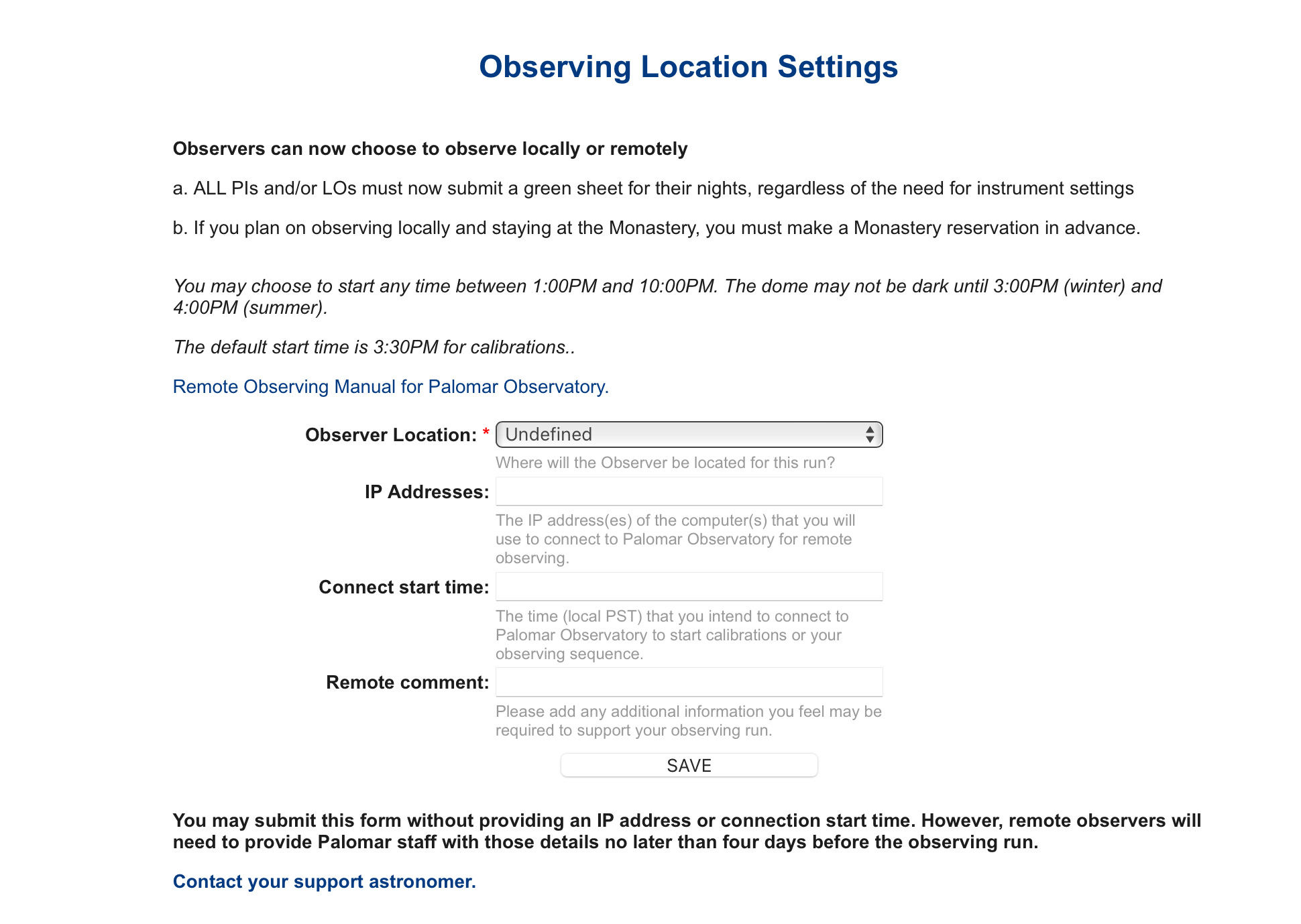
Remote observers can enter their remote observing IP addresses, anticipated start time, and any additional comments through this form. Until this form is completed and submitted the corresponding telescope schedule run entry will not display as complete (green color).
Please note that as of this writing reservations to use dedicated remote observing rooms (e.g. at Caltech or Yale) must be made separately—e.g. Caltech users please see the COO remote observing page.
3. Palomar Reservation System
Executive summary: The 2026 Palomar Observatory Reservation System build requires Multi-Factor Authentication (MFA) for system use. The following FAQ set describes how to register for a new account on the system, as well as how to activate and use MFA for both new and existing users.
Registering for an account on the Palomar Reservation and Maintenance System requires supplying a Constituency Registration Code the user obtains from their sponsoring institution. Submitted registration requests require approval by a Reservation System administrator.
After an account request is approved, a user can log into the Reservation System. At first login they will be prompted and required to configure Multi-Factor Authentication for their account, using an authenticator app like Cisco Duo, Google Authenticator, or Microsoft Authenticator running on their phone or tablet. Thereafter, system use will require both their user credentials, and a unique (single-time-use numeric) session code provided by their authenticator app.
3.a. What resources do I need to have/install/arrange before I register for a Reservation System Account?
New Reservation System account setup is necessarily a multi-step process with some prerequisites:
- A smart device with an authentication app (e.g., Cisco Duo, Google Authenticator, or Microsoft Authenticator) and basic proficiency with it (reading a QR code with said app).
- An alphanumeric Constituency Registration Code obtained from their Palomar observing sponsoring institution (e.g. Caltech, JPL, Yale, NAOC).
3.b. I am a first-time Palomar observer. How do I create a new reservation system account?
3.b.1. Submit Registration Request
Register for a new account by filling out and submitting the form at the Palomar Reservation System. Creating a Reservation System account requires submitting contact information (e.g., name, email, phone number, and institutional affiliation) and a valid Constituency Registration Code (8 alphanumeric characters, see FAQ 3.h) obtained from the user’s Palomar observing sponsoring partner.
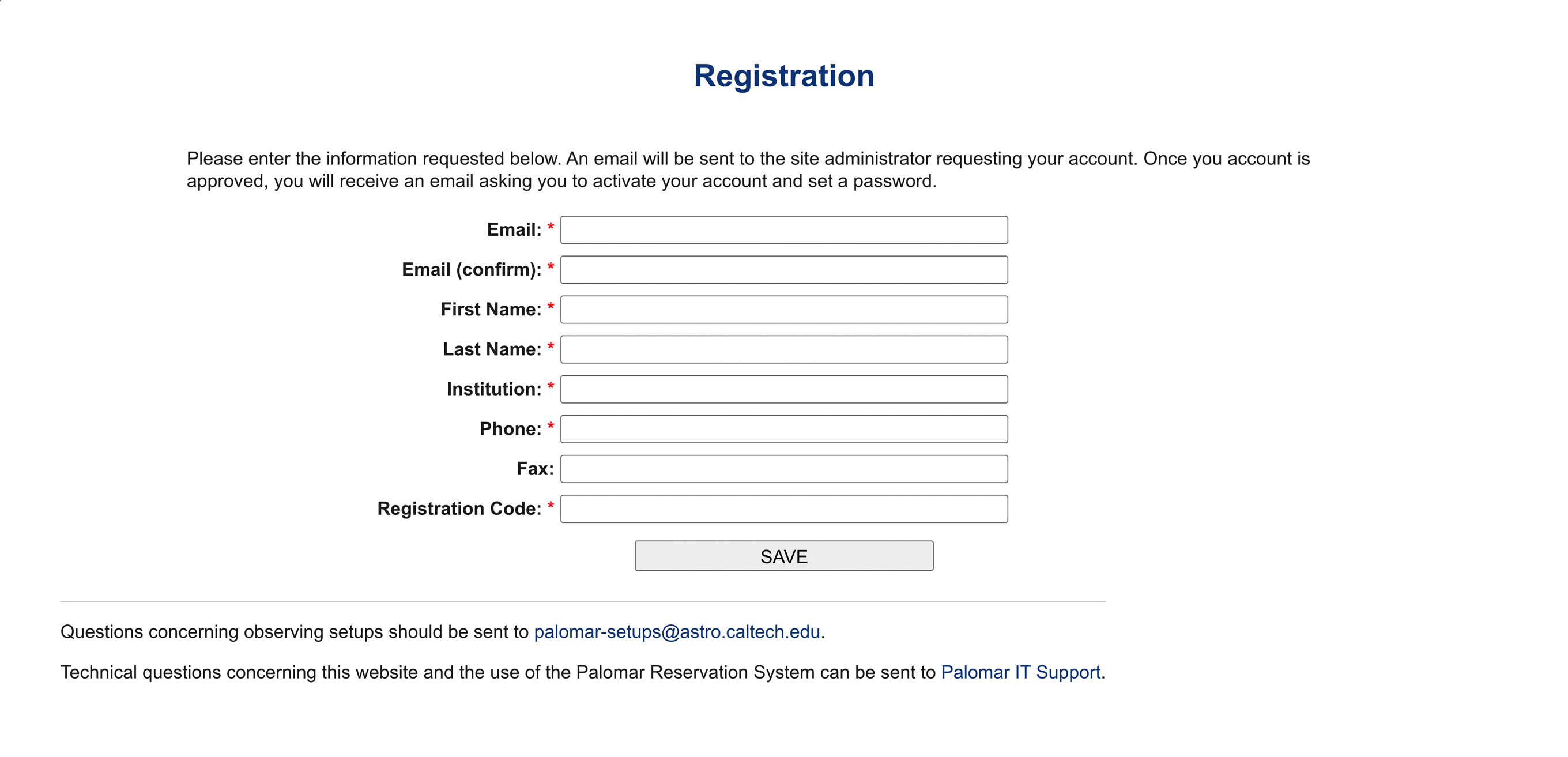
Submitted registration requests return an acknowledgment response, and subsequently are reviewed by a Reservation System administrator. Approved registration requests will receive email confirmation (sent to the submitted contact address) containing the user login URL.

3.b.2: Account Access and Multi-Factor Authentication Activation/Association
The first time any user attempts to log in to their account on the 2026 Reservation System build, the system requires Multi-Factor Authentication (MFA) activation and account association. This step is required for all users, even those who have an existing Palomar Reservation System account.
The Reservation System MFA architecture requires use of an authenticator app (implementing a time-based one-time password protocol, see FAQ 3.e) such as Cisco Duo, Google Authenticator or Microsoft Authenticator, to supply single-use “session” authentication codes. Upon reaching the Activate Authenticator App page during their first new system login users will need to either scan the supplied authenticator app activation QR code (see FAQ 3.h) with their preferred authenticator app, or enter the “authenticator secret” alphanumeric string displayed below the activation QR code, to configure the authenticator app for use with their Reservation System account.
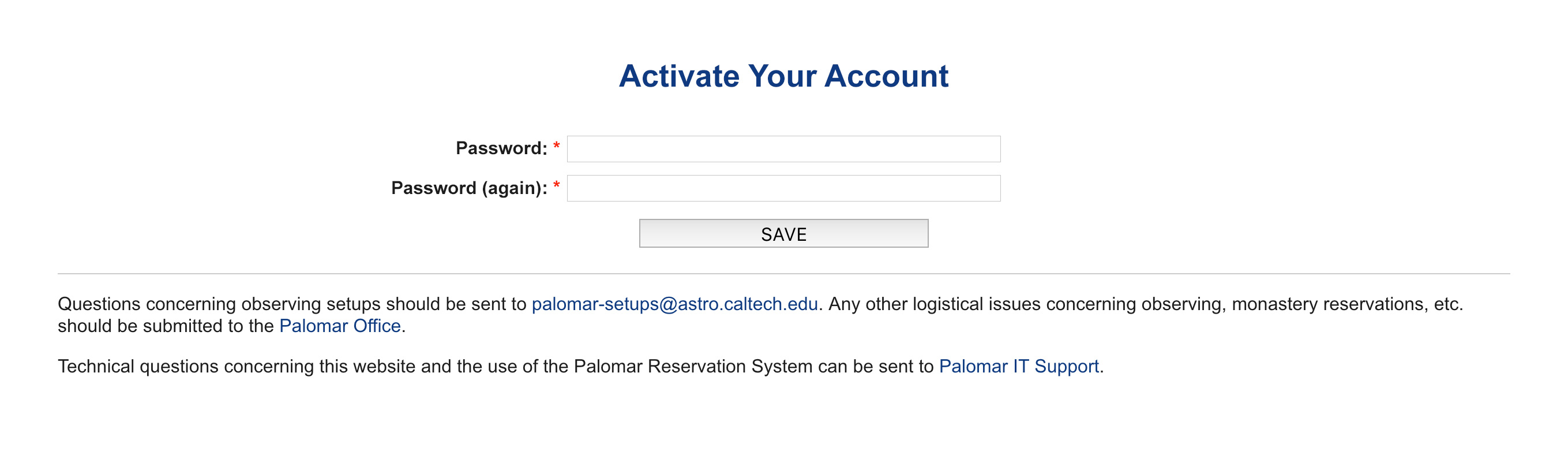
Once the authenticator app has been configured, it will provide an initial authenticator MFA session code (typically a numeric sequence; FAQ 3.h) to enter into the “session code” field. Enter that session code and promptly hit the Activate button (session codes typically cycle after about 30 – 60 seconds; the so-called “activation time”), and authenticator app MFA will be configured for the user account. As an additional security measure, the user will be required to re-enter the account password to reverify their identity.
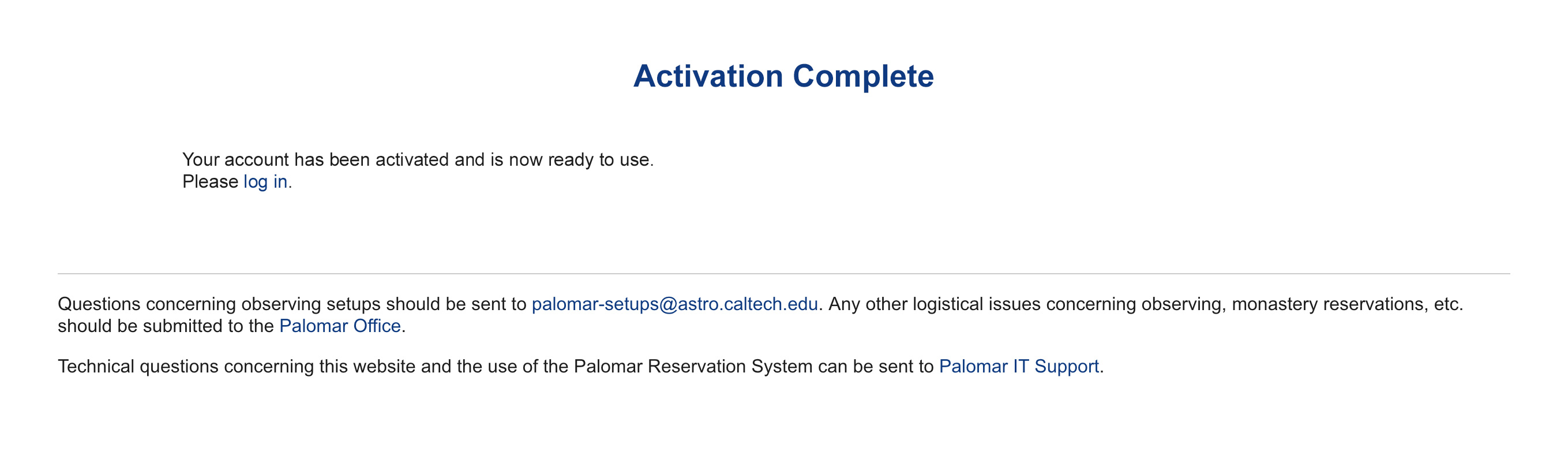
The final authentication activation step is the reporting of Reservation System MFA “authenticator recovery codes”—multiple 8-digit numeric codes that allow recovery in case MFA authenticator app access needs to be reestablished in the future.

NOTE: It is essential that the user download and safely store the list of MFA recovery codes, so that one can be used if the user has trouble employing their authenticator app when logging in. After a recovery code is used once it may not be reused—which is why several are provided at this stage.
3.b.3. System Login
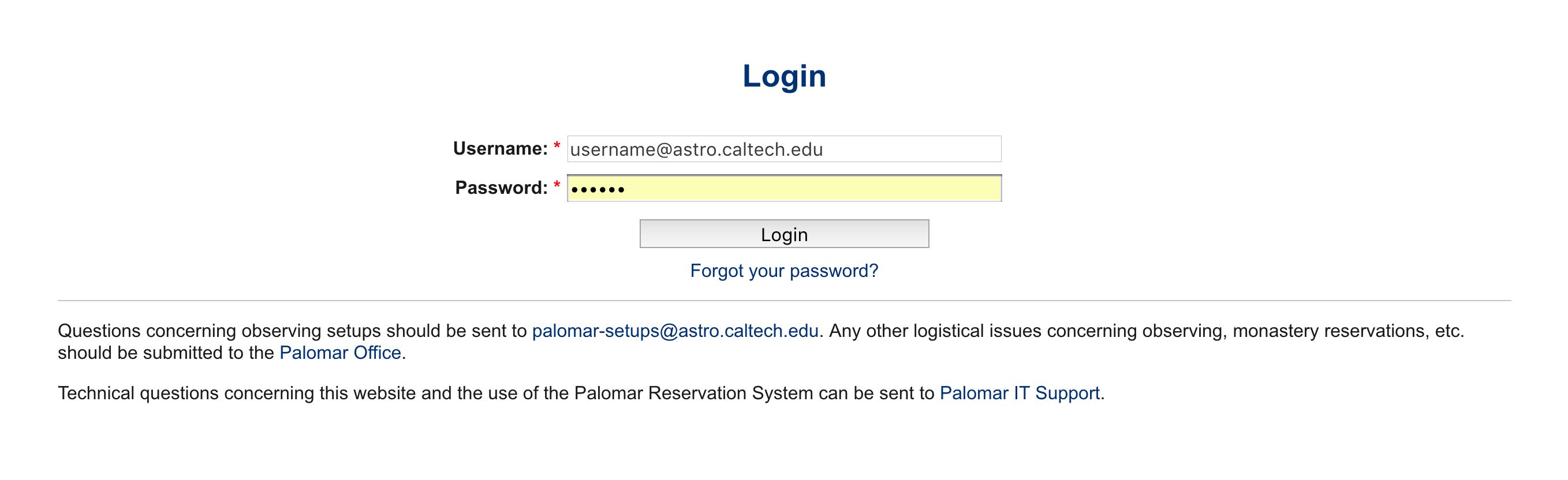
At this point the user account should be fully activated and the standard login (username/password credentials + MFA session code entry) process should be properly configured and functional (see FAQ 3.i).

3.c. I already have a Palomar Reservation System account. What steps are required to continue my system access?
When existing Registration System users access the 2026 Registration System build they will be required to associate MFA configuration with their account for continued system access. Please refer to FAQ 3.b.2 above.
3.d. What is the motivation behind the extensive additional identity security?
We appreciate that these modified access methods are more complicated / less convenient than before.
Unfortunately several high-profile observatory computer system incursions combined with increased unauthorized access attempts at Palomar animate updating our approach to Reservation System security/identity verification. Caltech has adopted enhanced security policies that require MFA among other changes that make it harder for unwanted actors to access our systems.
3.e. What is an authenticator app and why do I need one?
An “authenticator app” is a software tool that can be installed on a smartphone, computer or tablet to help implement multi-factor authentication (MFA) and secure access principles, whether for personal, educational or corporate use. The 2026 Reservation System build uses the authenticator app construct (implementing the time-based one-time password—TOTP protocol with the “session code”) to verify user identity.
Caltech users will probably already be familiar with Cisco Duo; other authenticator apps are available from Google and Microsoft.
Additional Context: TOTP-protocol Authenticator Apps [show]
Time-based one-time password (TOTP) is a widely-used security protocol to verify user identity.
MFA constructs enhance system security by requiring redundant identity confirmation checks: even if a username/password combination are compromised, a bad actor still cannot access an account unless they also possess shared private context (“authenticator secrets” in the TOTP protocol vernacular) established in the authenticator app association process (FAQ 3.b.2).
When a user scans an authenticator app QR code with their authenticator app a pair of shared secrets is established between your authenticator app and the Reservation System. These shared secrets provide the context for generating and verifying the correctness of the session code used in the login/identity verification step.
Session code content and cadence/activation time may vary according to authenticator app.
3.f. What Authenticator Apps work with the Palomar Reservation System?
These user-space authenticator apps are known to work with the 2026 Palomar Reservation System

3.g. How do I choose my Authenticator App and change it if I wish to?
We expect most users will already have an authenticator app installed on their handheld (e.g. Cisco Duo) and will only need to associate that app with the Palomar Reservation System once.
However, if a user wishes to change out their authenticator app for a new one, they will have to log in (probably using one of the MFA recovery codes already saved), disable MFA for their account, and then re-enable it using a new authenticator app.
To do this, log in and visit the “My Profile” tab (the default page a user is sent to after a fresh login). This will open the submenu for user actions in the sidebar.
Click Deactivate MFA, which will bring you to the page displayed below. From there, click the Deactivate button, and then enter your password on the next screen, as a security measure.

The user will then be presented with the next screen. To reactivate MFA with a new authenticator app, click Activate to be brought back to the step displayed FAQ 3.b.2, then continue from there.

3.h. Why so many “codes” and how do I keep them all straight?
We acknowledge this “code proliferation” and regret the additional complexity. That said, here’s a summary of the various codes relevant to the registration and identity verification processes:
- Constituency Registration Code: During new account signup a one-time [8-character alphanumeric] code used to associate a user with a sponsoring Palomar partner constituency. These are typically provided by your constituency scheduling contact.
- Authenticator App Activation QR Code: QR code presented by the Reservation System during authenticator app activation to facilitate activation / association.
- MFA Recovery Codes: Persistent [8-digit numeric] single-use codes that allow association (and reassociation) between a Reservation System user account and an MFA authenticator app.
- MFA Session Code: Limited duration single-use code supporting identity verification for each Reservation System user session. Session code details (e.g. viable duration, length) will depend on the particular authenticator app used.
3.i. After all that registration process, how do I login to my Reservation System account?
Go to the reservation system login page and enter login (username / password) credentials. Your username will be the email address you used to register the reservation system account. When prompted, enter session code provided by the user’s authenticator app. See also FAQ 3.b.3.
3.j. How do I submit and edit instrument settings for my run?
Please see FAQ 2.d and FAQ 2.e.
3.k. How long do I have to submit instrument settings for my run?
We request instrument settings are specified not less than two (2) weeks in advance of an upcoming observing run. The reservation system will support submission or edit of instrument settings up to four days in advance of your observing run. If you need to change instrument settings inside this four day window you must contact the support team to request changes.
Please also see FAQ 2.e.
3.l. How do I define my observing location?
Please see FAQ 2.i.
4. Palomar Observing
Executive Summary: Associated with the 2026 Reservation System rollout we have outsourced the Monastery lodging management component to the commercial Cloudbeds service. This change streamlines our Monastery financial management for the COO Business Office and helps the observatory manage costs. However it does necessitate retiring the older Monastery management system that integrated Caltech PTA functionality. Going forward it will no longer be possible to make Monastery bookings against Caltech / JPL PTAs, and instead all bookings must be supported by user credit card information (managed through the external Cloudbeds service).
4.a. I intend to observe on-site at Palomar. How do I arrange on-site accommodations?
Observer on-site accommodation are provided at the Palomar “Monastery.” Please see the observer travel page for an overview of observer travel resources, including information about the Monastery and specific information for NAOC-designated observers.
You can book your Monastery reservations at our Cloudbeds portal accessible only through the online Reservation System. A valid reservation system login is required.
Please note that if other members of your observing team intend to participate in the run remotely that information should be entered through the Run Location entry form (FAQ 2.i).
4.b. How do I make a Monastery reservation?
Cloudbed portal access is limited to current Reservation System account holders and active (and thus identity-verified) Reservation System (RS) sessions. The Monastery Reservation navigation link appears in the left navigation menu during an RS session, and selecting it brings up a Monastery Reservation launch option.

The launch option takes the user to the Cloudbeds / Palomar Monastery reservation portal where Monastery reservations are booked through the standardized Cloudbeds process:

- Select desired reservation dates (check-in and check-out fields) and correct number of guests for each desired room reservation.
- “Search” return provides a list of available Monastery rooms matching the search criteria from which to choose for the desired stay (by selecting the “Add” button).
- Selecting a room brings up the option to proceed to the booking stage, and “Book Now” starts the booking sequence.
- Next is the guest information entry page where the user enters (required and optional) guest information.
- In the payment processing page is where users will enter and verify credit card payment information to secure the reservation.
- When payment is accepted a reservation acknowledgment page confirms a successful reservation booking (typically the user will also receive confirming email as well).

4.c. Can I use the Monastery during the day without booking a room?

Yes. Our Cloudbeds reservation system allows you to book day-use only access (no overnight room). Because Cloudbeds requires different check-in and check-out dates, please select your day of use as the check-in date and choose the following day as the check-out date. Then select the day-use only option following the steps described in FAQ 4.a and 4.b. Although the reservation summary may display “1 night,” access is limited to the check-in day only. This includes use of the common areas (living room, dining room, ground-floor restroom, and terrace) and food service.
4.d. What are the Monastery guest fees?
Please see the observer travel page. In particular please note that there are significant financial “incentives” to book your Monastery reservations well in advance. Palomar is remote, so this advance planning information is important for our Monastery service providers.
4.e. I have certain dietary restrictions. How do I inform the Monastery service providers of same?
Please refer to the observer travel page for more information on this topic.
4.f. What do I need to know to travel to Palomar?
Please see the observer travel page, including specific information for NAOC-designated observers.
4.g. What are the Monastery check-out and check-in times?
Monastery guest hours are somewhat flexible depending on room availability, but a check-out time around noon and a check-in time around 2p/14:00 Pacific Time are reasonable planning guidelines.
4.h. How do I find X at the Observatory?
Please see the observer travel page for an Observatory compound map.
4.i. Wait—what do you mean the Observatory compound has a security gate?
Please see the observer travel page.
4.j. How do I get into the 200-inch dome?
When you arrive at the Observatory, first go to the Observatory Office (before 4p Pacific Time—after hours arrival should be cleared in advance with your support astronomer). At the office you will document your vaccination status (Caltech requirement) and will sign up for a Monastery room and get a dome key as appropriate. At the 200-inch dome on the ground floor you can take the elevator to the observing floor (Press “O” in the elevator) to get to the data room.
First-time Palomar visitors should refer to the Observatory compound map in the observer travel page.
4.k. I intend to observe remotely. How do I request remote (P200) observing arrangements?
Remote observing (RO) at P200 is accomplished by VNC computer and videoconference connections. Palomar RO requests are submitted through the Reservation System (link FAQ 2.i).
4.l. When can I do my (P200) instrument calibrations?
You can start calibrations any time after the lights are turned off in the dome. Typically lights are off in the P200 dome at or around 3:30 pm (15:30) Pacific Time.
4.m. When should I arrive at the (P200) dome?
If you would like a tutorial or refresher on how to use the instrument, it is best to come to the dome an hour before you plan on taking calibrations. Otherwise, we recommend arriving when the lights are turned off in the dome so you can take any necessary calibrations.
4.n. What time can I start (P200) observing?
The P200 telescope operator can open the dome any time after sunset, given safe weather conditions. When you meet the telescope operator, let him or her know when you’d like to start your observations.
5. Various and Sundry
5.a. How do I provide feedback on my Palomar experience?
We very much value your feedback—it helps us raise our game. Caltech Optical Observatories (the administrative home of Palomar Observatory on the Caltech campus) maintains a feedback submission portal. If you find this web interface inconvenient you may send email directly to coo-feedback [at] astro.caltech.edu. All feedback is considered confidential.
5.b. How do I contact Palomar Observatory?
Please see the Palomar website's contact page.
Questions? We've answered many common observing and operations questions in our observer FAQ page.
Please share your feedback on this page or any other Palomar topic at the
COO Feedback portal.
FAQ / v 1.0.4
Last updated: 6 February 2026 AFB/JWM/CMH/JWB/KMR

|

|